Guides & grid
BagaCAD has three drawing references: construction guides, temporary reference points and the construction grid. None of them is mesh geometry, none is rendered, and none is saved in the scene. They add snap targets on top of the mesh snaps.
Guide or temporary point?
| Construction guide | Temporary reference point | |
|---|---|---|
| Use | Lasting alignment for several segments | Quick alignment for the segment in progress |
| Created by | Hovering 2 s, or A + two vertices | Hovering 0.15 s on a vertex or intersection |
| Form | XYZ frame (three axes) or infinite line | A point offering XYZ projections and the directions of its edges |
| Display | Always drawn | Hidden; a dotted link appears only while you follow it |
| Lifetime | Until R / Shift + R or the end of the tool | Two at most; cleared after each confirmed segment, shape or extrusion |
| Editable | Move with Alt, rotate an XYZ frame with Shift | No |
A short hover acquires a temporary point; keep hovering and a guide is created where supported. A small bar under the cursor fills during the guide delay. All four delays are editable in preferences.
Construction guides
A guide is a fixed reference you build on purpose. An XYZ guide has one origin and three perpendicular axes. An edge guide extends an edge infinitely in both directions.
| Key or gesture | Action |
|---|---|
| Hover a vertex or edge midpoint for 2 s | Add an XYZ guide |
| Hover an edge, away from its midpoint and ends, for 2 s | Add an edge guide |
| A on a vertex, then click another vertex | Add a guide through both vertices |
| Hold Alt over a guide, then move | Move the guide; release Alt to confirm |
| Hold Shift over an XYZ axis, then aim | Rotate the XYZ guide around its origin; release Shift to confirm |
| X / Y / Z while rotating | Lock rotation to that local axis; press again to unlock |
| Esc / right click / Backspace during a move or rotation | Cancel it |
| R | Remove the last guide |
| Shift + R | Remove all guides and temporary points; the grid is kept |
Guides are not created while typing a value or navigating the view. They stay available between segments, in shapes and offsets, and after switching to Dimensions and back.
Moving an XYZ guide moves its three axes together; an edge guide keeps its direction. Snapping is active during the move. Over a guide, Alt moves it; elsewhere Alt keeps its usual role (edge extension, coplanar faces).
During a rotation, X / Y / Z refer to the guide's own axes at the start of the gesture. The origin and the locked axis stay fixed. If the grabbed axis is the rotation axis, the next axis supplies the aiming direction.
Guide intersections must meet in 3D; a crossing visible only on screen is not a snap.
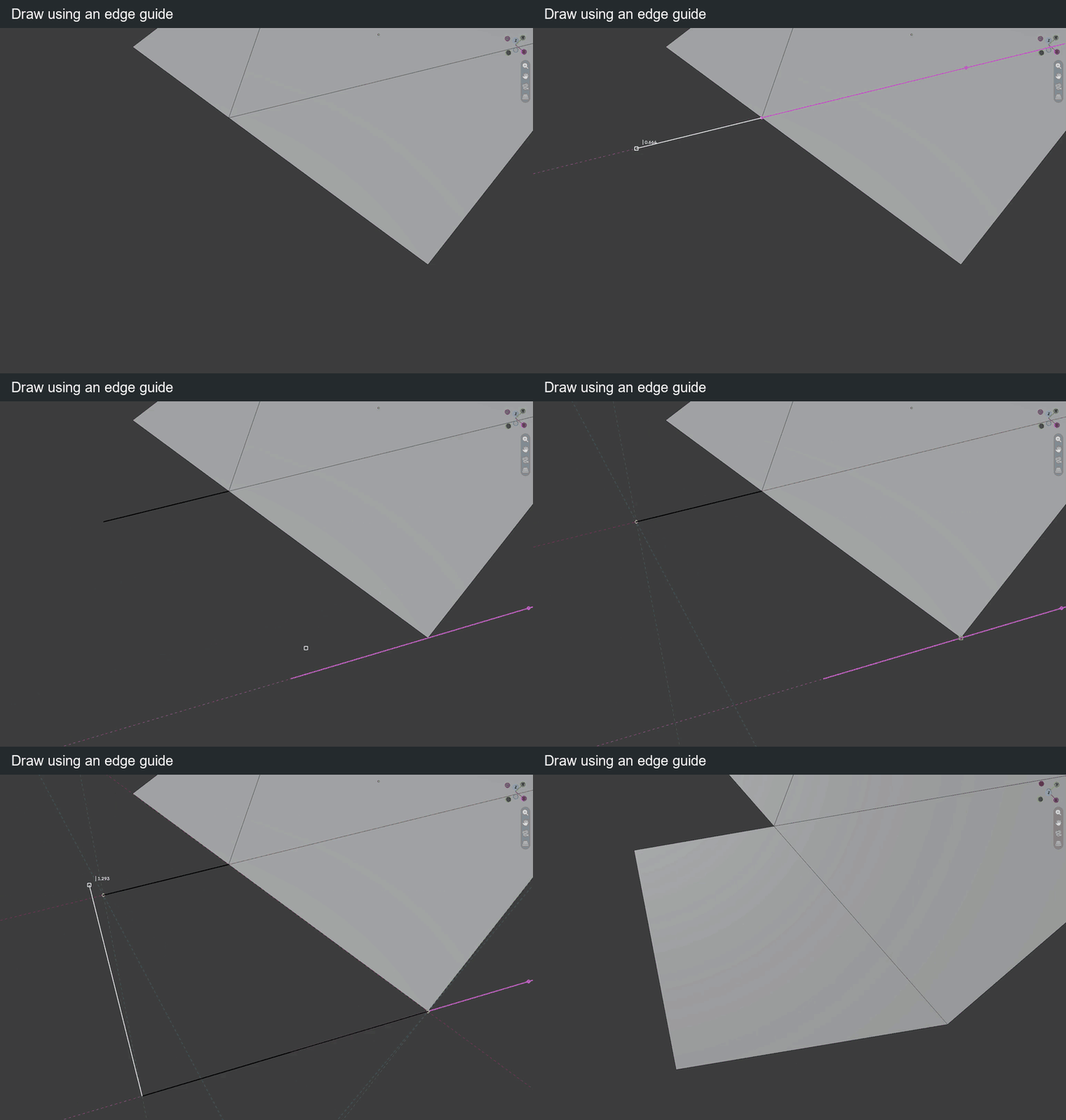
This clip uses an earlier development build; use the shortcuts listed above.
Temporary reference points
A temporary point remembers a position for the segment in progress. It creates nothing and cannot be edited.
| Key or gesture | Action |
|---|---|
| Hover a vertex for 0.15 s, then move away | Remember it; its XYZ projections and edge directions become snaps |
| Hover a guide/guide or guide/edge intersection for 0.15 s | Remember that intersection |
| Acquire a third point | Replace the oldest one |
| Confirm a segment, shape or extrusion | Clear the temporary points |
| Right click / Backspace (no input) / Ctrl + Z / Shift + R / D | Clear the temporary points |
Two temporary points work together: their projections can cross each other or cross a guide. Following one projection can also snap where it meets a plane through the other point (XY, YZ, XZ or one of its faces). These planes are not drawn; a dotted link shows which point supplies the snap.
Construction grid
| Key or gesture | Action |
|---|---|
| G | Show / hide the grid; on first use, create XY at the 3D cursor |
| Shift + G | Place or reorient: click the origin, then the X direction |
| G while choosing the direction | Toggle using the measured length as cell size |
| Hold Ctrl on the direction click | Use the measured length as cell size |
| Ctrl + G | Set cell size: measure a segment, or type a value and press Enter |
| Alt + G | Place and align the grid on the hovered face |
| Shift + X / Y / Z, no segment in progress | Orient a world grid to YZ / XZ / XY |
| Esc / right click during setup | Cancel and restore the previous grid |
The grid snaps to line intersections only. Default step: 0.1 Blender unit. Hiding and showing it keeps its origin, orientation and size for the tool session. R and Shift + R do not affect it.
Holding Ctrl while drawing disables snapping to guides, temporary points and grid nodes; the grid stays the drawing plane. Grid setup and guide editing keep their own point picking.